Thursday, July 19, 2012

What's the Difference Between Noise Cancelling & Noise Isolating?

In the market for a nice set of headphones? Not sure which type to get? It's usually pretty easy to decide whether you want small headphones that go in your ear, or bigger ones that go on or over your ears. Similarly, finding good quality sound is as simple as either trying them out in-store or finding a review of them online. The one thing that I've found people get confused about though is the difference between noise isolating and noise cancelling headphones.

They sound practically identical, and they can have similar effects, but the way these two technologies work is completely different. Noise isolating headphones are generally in-ear headphones; These are the small buds that actually go inside your ear canal. They work just like ear plugs by filling your ear canal so no outside sound can come in. If you imagine ear plugs that have tiny speakers in them, that's exactly what noise isolating is. They physically block out sound while piping in your audio through the same plugs.

Noise cancelling is a lot more complicated and thus usually a lot more expensive than noise isolating. As you may know, sound travels in waves. Noise cancelling headphones actually produce sound waves that cancel out the most common "noises." Here's a quick diagram from mediacollege.com that shows what happens:
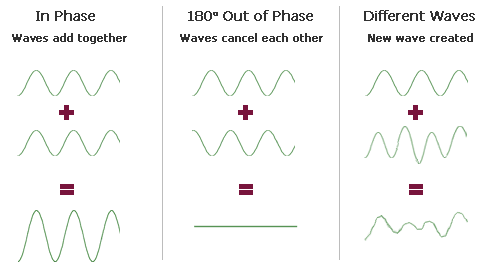
Noise cancelling is the middle example. You have two waves that are complete opposites and when they hit each other they cancel out-- hence noise cancelling. At this point you may be asking how the headphones can make such a sound to do this. Not nearly as easily as noise isolating, that's for sure. Noise cancelling headphones are going to be over the ear headphones, meaning they're actually little cups that go over your entire ear, and in those cups it's going to have the hardware that makes those sound waves and the extra batteries required to make them. That's right, noise cancelling headphones usually require their own separate batteries.

Practical Tip of the Day:
If you're looking for noise reduction during your gym visit, I generally recommend getting noise isolating in-ear headphones. Their smaller design and smaller price point makes them good gym buddies since you won't be walking around the gym floor with big $300 headphones on. If you travel a lot, especially by plane or train, noise cancelling might be better as they can reduce noise more, and generally people find them more comfortable for long-term wear since they don't actually enter your ears.

Tuesday, July 17, 2012

What Does Airplane Mode Do?

Heard the horror stories of people who go on a vacation or travel for work only to find a massive phone bill waiting for them when they get home? Sometimes the people don't even actually leave the country, but get close enough to a border that their phone connects to a cellphone tower on the other side. This happened recently when I took my family to see Niagara Falls. We were close enough to Canada, and far away enough from any cell towers on the US side that our phones connected to Rogers, a Canadian cell phone provider.

What if you don't want to turn your phone totally off, but want to ensure that you don't use the phone or data services? Maybe you're travelling abroad, going into a hospital, or boarding a plane. Simply go to the settings in your smartphone (airplane mode is for smartphones only), and, usually on the main settings screen, you'll see a little switch for Airplane Mode. Just turn it on and voila! It's like turning the phone part of your smartphone off. For iPhone users, I describe Airplane Mode as turning your iPhone into an iPod Touch.

You'll still be able to connect to wifi, but no calls, texts or voice-mails will be sent to your phone while in this mode. As soon as you turn it off, all the above mentioned things you missed will flood in, so don't worry!

Practical Tip of the Day:
When traveling, be careful which wifi networks you connect to. While most are legitimate, some may be monitored by hackers who can watch what you do and even connect to your computer through their network. If you see multiple possible networks, ask an employee of where you are which network is theirs. It's not uncommon to see fake wifi networks with seemingly proper names.

Thursday, July 12, 2012

What Does KB, MB and GB Mean?

In Tuesday's article on What Size Flash Drive You Need, we discussed the different sizes a digital file could be and what their average is. Some files were measured in KB (kilobytes) while others were in MB (megabytes) and still otheres were in GB (gigabtes). This digital capacity measuring system can seem intimidating at first, but once the basics are understood, it's quite simple.

If you're already familiar with the metric system, you have a head start as that is where the prefixes for these measurements comes from. For example, kilometer and kilobyte. The metric system does things in multiples of 100's, but for technology, you'll see it used in multiples of 1,000. Brain hurt yet? Here's a simple breakdown:
  • Kilobyte- 1,000 bytes
  • Megabyte- 1,000 kilobytes
  • Gigabyte- 1,000 megabytes
There are measurements above and below the three measurements given there, but these three will be the ones you primarily see in computers and technology today. Think you've got it? Here's where things get a bit messy; These measurements are really metric and aren't really multiples of 1,000. If you're familiar with how computers work on a basic level and use binary (click here if you aren't) you know you know that they count by 8's, this is called a byte, and therefor instead of a kilobyte being 1,000 bytes, it's actually 1,024 bytes. Will you need to know this? Not unless you want to show off, but it's still good to know and there are nerds out there that will correct you on it.

Practical Tip of the Day:
The 1000 vs 1024 difference doesn't make much an impact on a small scale, but as you start storing more and more data, the impact becomes more and more pronounced. Check out this helpful chart from Wikipedia for a quick reference.

Tuesday, July 10, 2012

What Size Flash Drive Should I Get?

The other day a friend of mine was mentioning that they needed to go to the store and buy a flash drive, but when they were there earlier in the week they were overwhelmed by the vast differences in style and capacity flash drives come in nowadays. (Click here if you don't know what a flash drive is.) While style is completely personal, there are a few tips that can make picking a capacity (or more commonly called "size") of flash drive easier.

The first thing to consider is what you'll be putting on the drive. Are you using it to backup photos? Transferring songs between your computers? Or are you storing important documents and PDFs on it? Different files tend to be larger or smaller than others. For example, a good average size for a word document (1-3 pages of text) is about 20-30 KB (kilobytes). Audio (music, spoken word, etc) is about 1 MB (megabyte) per minute, and photos can vary wildly depending on resolution and file type but tend to be 1 MB or less per photo. (If you don't understand "megabyte" or "kilobyte" check back on Thursday when I'll be covering that topic.)

That being said, a 4 GB flash drive will hold roughly 4,000 photos, 4,000 minutes of audio, or more word documents than any one person would probably ever have for personal use at any one time. When stated like that, most people usually lean more towards getting a smaller (again, we're talking about capacity, not physical size) flash drive. Consider though if you're storing a home video. If you have a nice HD camera, it can take up to- or sometimes surpass- 2 GB (gigabytes) per hour of video. This is because videos contain both an audio track and thousands of pictures to make up the video.

Practical Tip of the Day:
If you're planning on using a flash drive to back up your files, I recommend reconsidering and getting an external hard drive instead. Far too often I've seen clients that have a drawer filled with flash drives that have photos on them, but because of this method, they have to search through the drawer looking for the correct drive if they need it and that's if they had the forethought to label the drives as they filled them. An external hard drive gives you one place to find all of them, making it much easier to locate your files if you need to recover them.

Thursday, July 5, 2012

What is VOIP?

As previously mentioned in the article entitled "What is Skype?" an increasing popular way to make long distance telephone calls, especially out of country, is using a VOIP service like Skype. VOIP stands for "voice over IP," which means that yes, it's an acronym that holds another acronym. "IP" means "Internet Protocol," so to break down "Voice Over Internet Protocol" it simply means that you can talk over the Internet like it's a phone.

To understand why this is impressive, one must first understand the difference between "analog" and "digital." If something is analog, it travels along a continuum. Think of this as the way someone can count between 1 and 2, using a seemingly infinite number of decimals between them. If something is digital, it's more like counting between 1 and 2 (well, 0 and 1 actually), but there are no decimals. It's either one or two. Sound is something that is analog, we can make a wide range of sounds, but computers and other electronic devices only understand digital (click here if you don't know why) so the trick is getting something to sound analog when in fact it's digital. I'll spare you the long explanation as to how that happens.

Once the sound is converted into a digital signal, it can then be sent over the Internet to anywhere you want it to go. When you use a service like Skype, you can "call" people to direct where your digitized voice will be sent to. The nice thing about the Internet is that whether your voice is going across town or across the world hardly changes the delay in conversation so it can simulate a phone very well, and since most countries have a decent connection to the Internet, it can usually also save you money versus using an actual telephone.

Practical Tip of the Day:
If you're travelling abroad, using a VOIP service can save you money versus calling long-distance, but be careful if you're using an "Internet anywhere" card or a smartphone to access the Internet for that purpose as roaming fees for data are often much heftier than roaming fees for voice, and a conversation over VOIP can use a significant amount of data. When travelling abroad, I usually recommend turning off data roaming and using Wifi only if possible to save you from surprise several hundred dollar phone bills when you return.

Tuesday, July 3, 2012

What is Skype?

It's hard being away from the people you love. Grandparents thousands of miles away from grandchildren, a spouse travelling for work, or even just friends scattered to the wind after college. Yes, there's mail, phone, email and a list of other options available, but when you really just want to SEE the person, Skype is often the first program that comes to mind.

Now, mind you, Skype is not just for video chatting (talking to someone over video a la The Jetsons), but also does normal instant messaging, voice calling and is coming out with new and improved features every day. Its bread and butter though, what it's most known for, is video chatting. Both people need to have a Skype account, which is free and easy to set up, and when they're both using the Skype program, they can click a video camera button to start up the cameras on their respective machines and they'll be able to see each other in pretty-darn-close-to-real-time.

A good example of this is actually one of my own stories. When my husband and I were getting married, my mother couldn't come because she had knee surgery and couldn't travel. She had her computer connected to her TV, invited all the family and friends who couldn't make it over, popped popcorn and found comfy chairs. I simply logged into Skype on my smartphone, connected to her, said "Hi," and had one of my cousins hold the phone from the front row so my family thousands of miles away could watch the entire ceremony!


Practical Tip of the Day:
The next biggest thing Skype is known for is called VOIP, which stands for "voice over IP", which, in plain English means, using the Internet like a phone. This is popular because it means that you can make calls between computers instead of having to pay hefty international calling fees. VOIP calls aren't free, mind you, but they are usually significantly cheaper than through the phone companies. Check out Skype's webpage for more information about the costs associated with calling the various countries.

Thursday, June 28, 2012

What Should I Do With My Old Computer?

Recently, I decided it was time for me to get a new computer. My iMac was going on six years old, and while it still surfed the web and typed up documents fine, it was more than a little slow when it came to photo or video editing, which are some of my hobbies. I saved up the money and will soon be the owner of a new MacBook Pro with Retina display. The question I had to ask myself, and that I've been asked by others many times before is what to do with the old computer?

There are definitely options. First, think of anyone you might know who could use it. Anyone who doesn't have a computer at home who might like one? What about local non-profits? Is it still usable and would it be the kind of donation they'd accept? Churches, clubs, etc. can sometimes (but not always) accept donations of old electronics. If you do give your computer away, make sure it's wiped clean of your information first. There are many ways to do this depending on the kind of computer you have, but if you're not familiar with the process, take it to your local computer repair facility. Better safe than sorry with your personal information.

If you can't think of anyone who'd want it, you can try selling it. While most computers devalue quickly enough that you won't be able to get much for them, there are people who will buy old and even broken computers to use for parts. Mind you, you won't usually get much for it, but a little bit of extra cash never hurts. Again, be careful to wipe your computer of your old data, but it's not uncommon to see people selling their computers at garage sales, eBay or even Craigslist.

If niether of those options appeal to you, you can always recycle it. Please, no NOT just throw it in the trash! Many (if not all) of the parts of computers do not biodegrade, and they also contain some things that can be bad for the environment if they break or leak. Call your local computer repair shop and/or recycling facility to see if they accept old computers for recycling. Sometimes there are fees involved, but making sure your compuer stays out of the dump is worth it.

Practical Tip of the Day:
No matter which way you choose to dispose of your old computer, make sure you have a backup of your information before you wipe it off your old computer. This will ensure that even though you have a new machine, you don't have to start over with all your files as well.

Tuesday, June 26, 2012

What's the Best Case for a Laptop?

In short, whatever you want. In long, it depends on where you'll use your laptop, what kind of lifestyle you have, how much you want to spend, and how much you worry about protecting it. There are thousands of different kinds of laptop cases and bags out on the market now, and picking the right one can be difficult.

Where will you use your laptop? Will it only be going from home to the office? Do you travel a lot? Do you live in a sandy and/or wet area? Have kids? Taking your environment into account can help weed out some styles of cases. For example, for a business professional who only goes to the office and home, a briefcase style bag might be best. The computer is unprotected when it's outside of the bag, but the likelihood of something damaging the computer in this case is low. On the other hand, for a college student, a neoprene sleeve or hard plastic case might be best as they give more protection. Some students even use both!

Want a designer case? A lot of major designer brands are making laptop bags now. Laptop bags, as opposed to cases, offer no protection when the computer is outside the bag, and some only offer limited protection inside the bag as well. On the other hand, you can usually get a clear or colored plastic case for less than a fancy bag, and since these "shells" stay on your computer all the time, they offer maximum protection from drops and impact. If you're concerned about being caught in the rain, neoprene sleeves are slim cases your laptop can go into that offer water resistance. (Note: They're not water proof, just resistant.) Sorry there's no clear cut answer for this one, but hopefully using these questions you can narrow your search down reasonably enough that it's no longer overwhelming.

Practical Tip of the Day:
In addition to protecting the outside of your laptop, they also sell screen films to prevent scratches on your laptop's screen and keyboard covers. Keyboard covers help keep liquid and dirt out of your keyboard, the easiest spot for something to enter your laptop. As always, check out reviews for cases and bags online before you buy, and if you're extra concerned, consider either or both of these extra-protectors.

Thursday, June 21, 2012

How Can I Keep My Pet From Chewing My Cables?

New puppy or kitten chew through your $40 HDMI cable or your $80 charger for your laptop? It's not uncommon for young animals to "mouth" objects, but it can be expensive. Instead of getting rid of the newest member of your household, try these inexpensive and animal friendly tips to getting them to stop chewing on your cables, or anything else for that matter.

First, try simple discipline. A spray bottle of water, for example, is a good place to start for getting your pet to stop doing anything. Just make sure that if you're using a spray bottle you already have, it didn't have household cleaners in it previously. The next step of escalation is to try putting something bitter or sour on the cables. Lemon juice is the most commonly used variation of this. Simply rub or spray it onto the cable, making sure you're not getting it on any of the connection ends; The acid from the lemon juice could damage them.

If that doesn't work, spicy is the next step. Pet stores often sell a variation of this for this exact purpose. Generally made from peppers, it's possible to do at home, but please be careful about the strength of the spice, be cautious about allergies for your pets, and make sure the pepper isn't poisonous to your pet. For these reasons, I generally recommend people buy the store brand as they've been tested for all of these things before being sold on the market. If that doesn't work, simply try and keep your cables covered for now. Your young pet will grow out of this phase quickly, so don't give up on it.

Practical Tip of the Day:
One tip for keeping cats off surfaces is to put aluminum foil on it. (Cats hate the stuff evidently.) DON'T do that with your cables! Aluminum can carry an electrical current, so if your pet bites through the aluminum and into a cable carrying electricity it could do serious, or even fatal, damage to them.

Thursday, June 14, 2012

What are Podcasts?

When people first get an MP3 player, (click here if you don't know what that is) they first ask the inevitable question "So now what?" I usually advise people to start with the music they already own, and after that they can buy music, audio books, movies, TV shows... but is there anything in this digital world you can listen to for free?

One of my favorite things to show people is the vast and eclectic world of podcasts. One reason is that podcasts are free! Yay, free stuff! The second is that you can find podcasts about just about any subject you're interested in. Gardening? Check. Cars? Check. Politics, games, parenting, nutrition, news, money. Check to all of those! Just looking for some light entertainment on your morning walk? Many radio shows like NPR also have their radio episodes available as free podcasts as well.

The third reason I enjoy showing people podcasts is because, once they become well versed with using their computer, they can make their own podcasts. Podcasts are not only free to make, but they can also be fairly inexpensive to distribute. There are a decent number of options for getting your podcast out to the world, more than I have time to list here, but they can range for free to expensive based on what you're looking to do.

Practical Tip of the Day:
In addition to all the types of podcasts I listed above, many colleges and universities are now recording their lectures or parts of their lectures and releasing them for free in podcast form. Ever wondered what economics at Yale was like? You can download either a video or audio version of that class to listen to whenever you'd like. Podcasts are a great way to spend long commutes or vacation travel time!

Monday, June 11, 2012

What's the Difference Between Apple's New Laptops?

Yesterday was Christmas for Apple-nerds. WWDC's (World Wide Developer's Conference) keynote address is traditionally a time when major releases are announced, and yesterday was no exception. While we are missing Apple's late former-CEO Steve Jobs, Tim Cooke did a great job of keeping the excitement going and expertly showcasing all of the new products.

The biggest announcement was the new laptop lineup. Apple updated their MacBook Air notebooks ("Notebooks" and "laptops" are synonymous when it comes to computers,) as well as their MacBook Pro notebooks as well. The real surprise though was the announcement of a new laptop line called the MacBook Pro with Retina Display. Retina Display is Apple-ese for "super awesome high quality display." Without getting technical about it, the Retina Display manages to get twice as much detail in the same size screen as the normal MacBook Pro.

Apple actually has a very nice comparison chart on their website (right here) that lets people see a side-by-side comparison of their computer lineups. The only problem I've noticed is that after a line or two most people's eyes glaze over with all the technical jargon, so here's the "quick and dirty" difference. The MacBook Air is good for general use: web browsing, document editing, light photo or video work. If you do more than just basic video, audio or photo work, or just really want a bigger display, consider going to the MacBook Pro. If you're a professional videographer, musician, photographer or anything else that requires a high-powered machine (web designers, I'm looking at you!) or if you just really want that Retina Display, go with the MacBook Pro with Retina Display.

Practical Tip of the Day:
If you're considering getting one of the new Apple notebook computers, also consider getting AppleCare, their warranty program. People generally shy away from any kind of warranty program because, well, honestly, they're usually a rip-off, but AppleCare is actually quite helpful and I buy it for all of my Apple products. It's usually cheaper than even one repair on the computer, covers you anywhere in the world so you're still safe even while travelling, and also gives you unlimited call support. The only caveat is that it's a warranty program, not an insurance program which is illegal for a manufacturer to sell on their own products. This means that AppleCare will cover anything that goes wrong with your computer that's not due to outside forces like drops, liquid spills, etc. I still consider it a great deal though and buy it on all of my Apple products.

Friday, June 8, 2012

How Should I Clean My Keyboard?

Dusters and putties and air, oh my! With so many different ways to clean your computer's keyboard, which way's best? The keyboard is a very important part of your computer, and while they're not terribly expensive, you should clean it regularly to ensure it operates smoothly and has a nice, long life.

Look down at your keyboard. Unless you're using a keyboard with low-profile keys (like Apple uses on their keyboards nowadays) you're likely going to see a lot of gunk under or between your keys. The first step I usually recommend to cleaning your keyboard is just turning it upside down and giving it a little shake. Not hitting it or shaking violently, but a little shake while upside down can help dislodge loose bits.

If your keyboard still has particles of stuff in it, I recommend blowing some canned air into it. Canned air is sold in most electronic stores or departments, and really is just canned, compressed air. Hold the can as upright as you can and blow air between the keys. This usually will help dislodge more stuck-on pieces, and if you give your keyboard another shake you'll likely get more bits coming out.

Note: Do NOT use your canned air while the bottle is inverted. One of the chemicals used in the canning process can flash-freeze items, and therefore you should use caution to keep it inside the can. This is also why your can will get cold after you've used it for awhile.

Practical Tip of the Day:
Noticing the letting on your keyboard is wearing off? Do you use hand lotions? Some lotions can react with the natural oils of your skin to make a slightly acidic oil that then transfers onto your keyboard when you type, slowly eating the lettering away! The best way to prevent this is to either A) Make sure your hands are completely dry after using lotion and before typing. B) Change lotions. or C) Use a plastic keyboard cover. Keyboard covers sit on top of your keyboard helping keep stuff off and out of it. Using a keyboard cover will also make it so you don't have to clean your keyboard as often!

Tuesday, June 5, 2012

How Does Wikipedia Work?

As any teacher will tell you, Wikipedia isn't a citable source of information despite studies showing it's as accurate as the Encyclopedia Britannica. There are plenty of stories of Wikipedia pages being altered with false information, but is it really that bad? Millions of people visit Wikipedia, but just who writes all this stuff? To understand these questions, and to find answers, we must first learn how Wikipedia works.

Wikipedia is a large website that is filled with volunteer generated and maintained information about just about anything you can imagine. ("Wikipedia" is a portmanteau of "wiki," meaning "quick" and "encyclopedia.") Anyone can, anonymously if they'd like, create or edit a Wikipedia page. When you visit a Wikipedia page, next to the header for a subtopic is a link that lets you edit the text in that subtopic.

So how does it maintain reliability? Because it is so easy to edit, people can easily correct mistakes and mark instances where information may be misleading, incorrect, unverified, or biased. In cases where a site becomes vandalized, there are people with special privileges within the Wikipedia community that can prevent anonymous editing for a period of time and can block certain users if they are the ones responsible for the vandalizing

When you visit a Wikipedia page, you'll often see notes that will warn you if a particular statement needs citation, if someone believes it's biased, etc. Reading the superscript notes (smaller words written in the top right corner of another word) can help you ensure that you're reading cited, reviewed works.

Practical Tip of the Day:
If you do need to write a paper, or simply want to look at the sources used in a particular article, there's a section at the bottom of each Wikipedia article entitled "References." These will list the resources used in the article. Similarly, you can click on a superscript number at the end of a statement to view which work was referenced for that information. References may be electronic or print.

Wednesday, May 30, 2012

Should I Get a Smartphone?

A recent study has shown there are now more smartphone users in the US than basic phone users. That means that now more than ever people are using their phones for more than just making calls, but is a smartphone right for you? Even if you easily feel overwhelmed by technology or don't think you'd use all the functions, it's still easy to feel the pressure from friends and family to "get with the times" and buy a smartphone.

First of all, what makes smartphones "smart?" Generally speaking, a smartphone is a handheld device that can make calls and run programs like a computer. This means that on the same device that you call your friends with you can write an email, play a game, check the weather, and almost anything else you can imagine. If this sounds like something you'd be interested in, you might be a candidate for buying a smartphone. On the other hand, there are plenty of people who aren't interested in doing anything besides talking on their phone, and if that sounds like you, a smartphone might be unnecessary.

The other major consideration when contemplating getting a smart phone is your budget. Many smart phones nowadays are free or close to when you sign up for a contract. If you don't want to sign up for a contract, many smartphones will increase in price since the cell phone provider will not help subsidize the cost of the phone then. Either way, you want to make sure you look at the cost of adding data to your cell phone plan. Smartphones access the Internet often, and if you don't have an adequate data plan your cell phone bill could go sky high. Check with your cell phone carrier to see which plans and options they offer, and look at others available in your area as well to get a good competitive solution for you.

Practical Tip of the Day:
When in doubt, try them out! Head down to a store you can try smartphones out at and play around on them. See if you can easily figure out how to do all the things you'd want it to do, and make sure it "feels right" to you. There are a plethora of smartphones on the market now, and each one is slightly different. Picking out a smartphone is like picking out a car- make sure you read reviews, ask your friends and family, and do your research before spending your hard-earned money on a new phone.

Tuesday, May 29, 2012

What is Twitter?

It seems that almost everyone nowadays either has a Twitter account or is vehemetly against them. News organizations have them, companies and non-profits have them, famous and not-so-famous people have them, but what is Twitter and should you get an account as well?

Before you go and sign up for anything I always recommend reading up about it so you have a good understanding of what it is you're getting into. In this case, Twitter is another social networking site that lets you keep up with what people around you are doing, similar to Facebook, but each post is limited to 140 characters. Characters are things you type into the message, including spaces, punctuation, numbers and letters. For example, "I got 3 new hats!" is seventeen characters long.

This limitation keeps things short and sweet, allowing you read more, less detailed, information quicker. While everyone's Twitter habits are different, most people follow ("follow" is the Twitter version of Facebook's "friend" status.) a combination of the aforementioned "Twitterers". Much like Facebook, this makes it easy for information to travel quickly to many people. A humorous example of this was made by a web comic called XKCD. (Click here to see it.)

Practical Tip of the Day:
Just like Facebook, you want to look at the privacy settings in your Twitter account, especially if you're using your real name. If you don't have your privacy settings set up properly, everything you "tweet" will be viewable to the world and will come up if someone looks you up in Google.

Thursday, May 24, 2012

Should I Use a CD or DVD?

Now you know what kind of CD to get if you need to buy a CD, but do you need to buy a CD? What about DVDs? DVDs (Digital Versatile/Video Discs) are also discs that you can buy in most electronic stores and share the same versatility in R/RW & +/-, but are generally used for different purposes.

CDs do not hold as much information as DVDs. If you only need to store a small amount of information like a dozen songs or a few hundred pictures a CD will work just fine. If, on the other hand, you have a large collection of data to share, DVDs are best. The most common files found on a DVD are movie files. Movies are very large files since they are both a sequence of photos (think back to how videos were made way-back-when) as well as an audio track as long as the video.

One of the nice things about DVDs is that you can also get-- if your DVD-burner has the capability-- dual layer (DL) DVDs. Dual layer DVDs are like a layered cake. You have two layers of information on the disc so you can fit even more information on it. This is helpful if you have a particularly long video you wish to share.

So which should you use? DVDs are more expensive to make, and therefor buy, so I tell people to use CDs for everything they can, reserving DVDs for he special occasions you need to store a large amount of data on a physical disc.

Practical Tip of the Day:
Not sure if your computer can burn DVDs? If you have it, you can check the owner's manual, but if you're like most people and have no idea where that is, you can also check the front of disc drive on your PC. Often times it will tell you if it's able to read and write certain type of discs, and which variations it can handle. If you're using a Mac, going into "About This Mac" under the Apple menu (in the top left corner of the screen) will give you all the information about your computer, including a full listing of all the types of discs it supports.

Monday, May 21, 2012

What's the Difference Between CD+,CD-, and CD+/-?

Last week we looked at the difference between CDRs and CDRWs. If you're standing in an electronic store, eyes wide at the vast choices of discs, you're not alone! Today we're looking at what all those +'s and -'s are about on the discs, and how to pick the right one.

Back when making CDs at home was new and computers only started to come with CD drives that could also write, there were two different types. + and -. The exact differences are not of great importance anymore as they both make a disc that can be read in 99% of CD readers (be it your car, computer or other device). It was very important to make sure that you got a disc your computer could write on, otherwise it wouldn't work.

Nowadays most CD drives in computers are +/-, which means it can write in either format. This is very handy because it means when you go to a store to buy CDs you can get any of the three aforementioned types. What should you do if you find yourself needing to buy discs for a computer for which don't know the type of drive though? In that case, the best thing to do is buy a CD +/- because they can work in any kind of drive.

Now that you know the difference between CDRs, CDRWs, and +,-,+/- you're ready to tackle the CD section of the store! But... should you use a CD or a DVD? Most people think DVDs are just for videos, but they can be used for storage too! Next time we'll be looking at which type of disc to by for your unique needs.

Practical Tip of the Day:
Once you've burned a disc, I highly recommend you use a permanent marker to write a short description or title on the non-shiny side of the disc. If you leave your disc unlabeled, you may later think it's an unused disc and try to write over it, or you'll have forgotten what was on it in the first place. Never use a pen or pencil to write on your disc since it may scratch it, and don't write on the shiny side since that's where your data is held.

Thursday, May 17, 2012

What's the difference between CDRs and CDRWs?

At some point, you may wish to make a physical copy of something you have on your computer. Maybe you want to make a backup of some of your photos, or burn a playlist of music for a special occasion. Whatever your reason, it's easy to get overwhelmed by all the different options given to you by your local electronic store's disc section.

Quick side note: I've already made reference to the phrase "burning a disc", and will continue to do so. "Burning" simply means the process of putting information on the disc from the computer.
You'll see discs in electronic departments separated three ways. DVDs vs. CDs, CD+ vs. CD- vs.CS+/-, and CDRs vs. CDRWs. I'll be taking each of these factors into it's own seperate article, so be sure to stick around and read the subsequent articles on the following Tuesday/Thursday. First to tackle CDRs vs. CDRWs.

CD stands for "compact disc". CDR means "compact disc readable". This means that once you burn the disc with your information it can't be altered. Think of the kind of CDs that you get from the store either for music or programs. You can't write over the disc to put your family photos, you can only read the information put on the disc by the manufacturer. These are CDRs. These are ideal for instances where you don't want the disc to be altered like for business or school presentations.
CDRWs stand for "compact disc re-writable". These discs can be burned, and reburned, and reburned. These are more like flash drives or your computer's hard drive. These are ideal for making backups as you can use part of the disc now, and then add more information to it later. You should be careful though. CDRs, just like your hard drive, do get worn down from being written and rewritten on, and thus do have a "lifespan". (Click here if you're not familiar with this concept on hard drives.)
So which one should you use? That's entirely up to you and what you want to use the disc for. Next time we'll discuss what all the plus and minus signs on CDs are about, and which one to use. Once you have that, you'll be able to pick your compact discs like a pro!
Practical Tip of the Day:

Discs often come on what's known as a spindle, one right on top of the other. Once a disc is burned, it should go in a type of case. This can either be a small plastic case or a paper sleeve. The reason for this is that the disc has tiny grooves on it that is read, much like a record player, and if it gets scratched it may not be able to be read and you've lost the information on that disc. When handling a disc, I recommend holding it by it's edges, putting a finger in the hole for added balance if need be. This helps prevent finger print smudges and scratches from ruining your disc.

Thursday, May 10, 2012

How Fast is 4G?

Now that you know what 4G LTE is (click here if you don't) let's take a look at how fast it is. Is it really worth upgrading your phone to get it? Will you get it everywhere? Will you actually notice a difference in speed?

The biggest problem with answering "How fast is it really?" is that it changes. There are several factors that could affect the speed of your wireless data, regardless of whether we're talking about 4G, 3G, Edge, or any other kinds. While 4G is often said to have speeds of about 100 Mbps (Megabytes per second), it's still subject to the same limitations as all cell phones. First, do you have coverage? There's not much point in having a 4G enabled phone if you live in the country and rarely go to major cities for example. At this point most cell phone carriers are just starting to have 4G coverage in major cities.

Second, if you do happen to be in a major city that has 4G coverage, your speed could also be affected by how many other people around you are using 4G. If you've ever gone to a convention, sports game, or any other large gathering of people, you may have already noticed that it's difficult to access the Internet on your phone when you're in a crowded place. That's because your phone is only one of thousands trying to connect to one tower.

Lastly, there are differences in speed based on the carrier you're using. Some carriers claim faster speeds (but less coverage), and others claim more coverage (but slower speeds). It all comes down to if you're actually going to be able to use it to it's full advantage. Is 4G really that much faster than 3G? In a word, yes, but that's only in theory.

Practical Tip of the Day:
When looking at a new cell phone, also make sure the provider is right for you. Most cell phones are available at multiple providers, so looking at your provider's coverage map for both phone and data plans as well as their advertised speeds can help you decide if a provider's right for you. If you live in a major city, speed might be more important since coverage is almost guaranteed, but if you live in a rural area, coverage may become an issue.

Tuesday, May 8, 2012

Should I Get a Laptop or Desktop?

You've finally decided that it's time to upgrade. You know what price range you're looking at, what you need the computer to be able to do, and you've saved up your pennies. Time to get serious about looking at computers, but should you look at desktop computers or laptops?

Here are the questions I usually ask people who are in this conundrum:
  1. Where will you mostly be using your computer?
  2. How often do you travel?
  3. What will you be using the computer for primarily?
If you'll be mostly using your computer at home, especially if it's mostly in a place like a home office, a desktop might be better suited. A laptop computer that stays plugged in sitting on a desk most of the time won't work very well when you do need to unplug it and take it somewhere. Rechargeable batteries are a lot like our muscles- if we don't use them, we loose them!

If you travel frequently, either for work or leisure, a laptop might be better suited for you. Desktops need to be plugged into an outlet to work, but laptops have batteries that can last for hours. I have seen people who get small desktops (like the Mac Mini) to take back and forth to vacation homes, but desktop computers are not as well suited to movement and travelling as laptops and therefor you should take caution when travelling with them.

If you have very easy to meet needs for your computer like web surfing, movie watching, sharing photos, word processing and the like, you can get an inexpensive laptop that can handle those tasks easily. If, on the other hand, you're making videos, editing photos, building websites, etc. you'll end up needing to spend a lot more money to get a laptop computer that's as powerful as a desktop computer. That's because making everything portable and during has a cost, and that shows up on the price tag.

Practical Tip of the Day:
If you do have high demands of your computer, but only travel once or twice a year, more and more people are opting to get a desktop/tablet combination. That way you have a powerful machine at home for when you need to make a movie, but then have something small and portable for your lighter needs while you travel. A desktop/tablet combination usually comes out to being about the same or slightly cheaper than an equally powerful laptop!